 The God Nation
The God Nation
The God Nation
The God Nation
The God Nation
The God Nation
The God Nation
This walks you through creating your own Leader account from the link your Admin shared, and shows you around your dashboard — your referral code, your links, and how to invite people.
Ce guide vous accompagne pour créer votre propre compte Leader à partir du lien partagé par votre Admin, et vous fait découvrir votre tableau de bord — votre code de parrainage, vos liens, et comment inviter des personnes.
Tap the link exactly as your Admin sent it. It opens a short form — no app to download, just your phone's normal browser.
Appuyez sur le lien exactement comme votre Admin vous l'a envoyé. Il ouvre un court formulaire — pas d'application à télécharger, juste le navigateur habituel de votre téléphone.
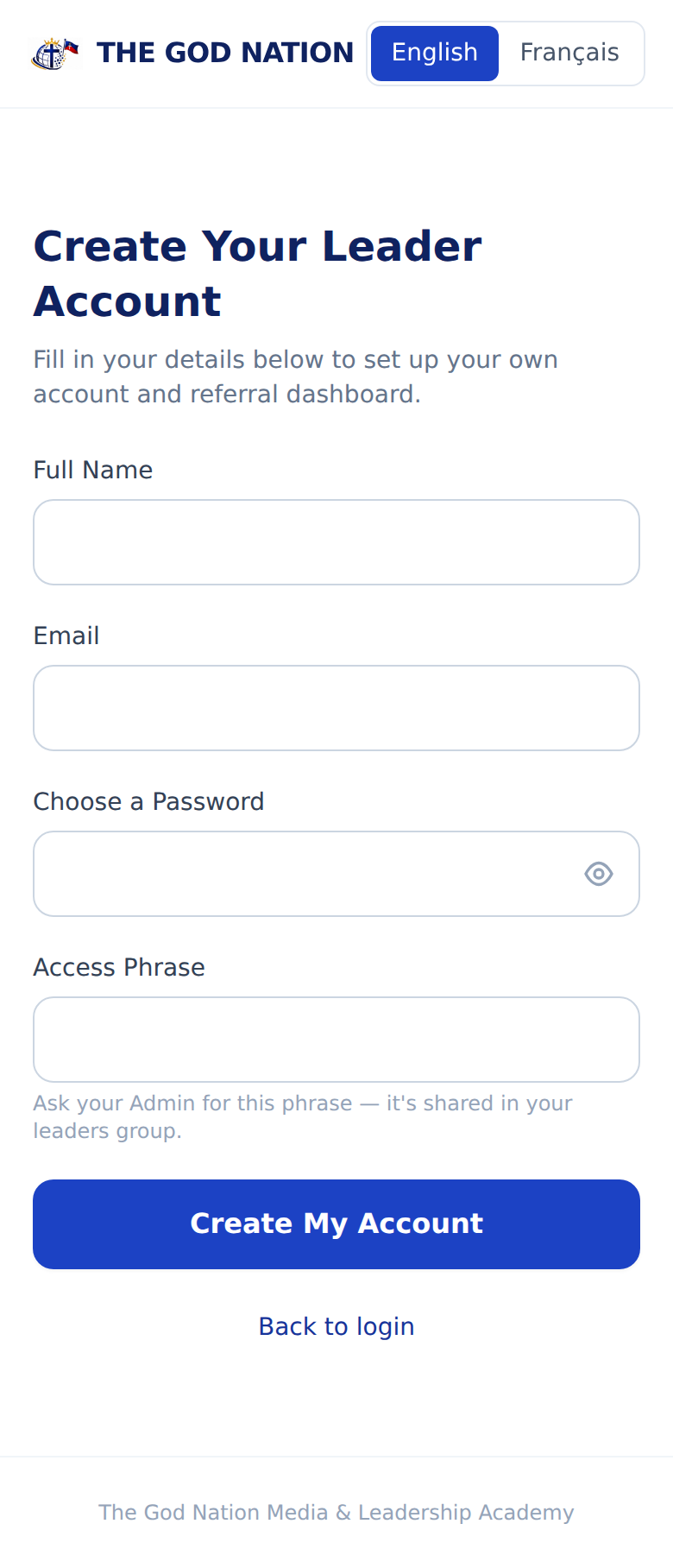
Enter your full name, an email you can actually check, and a password only you know. Then type the Access Phrase your Admin gave you.
Entrez votre nom complet, un e-mail que vous pouvez vraiment consulter, et un mot de passe que vous seul connaissez. Puis saisissez la Phrase d'accès donnée par votre Admin.
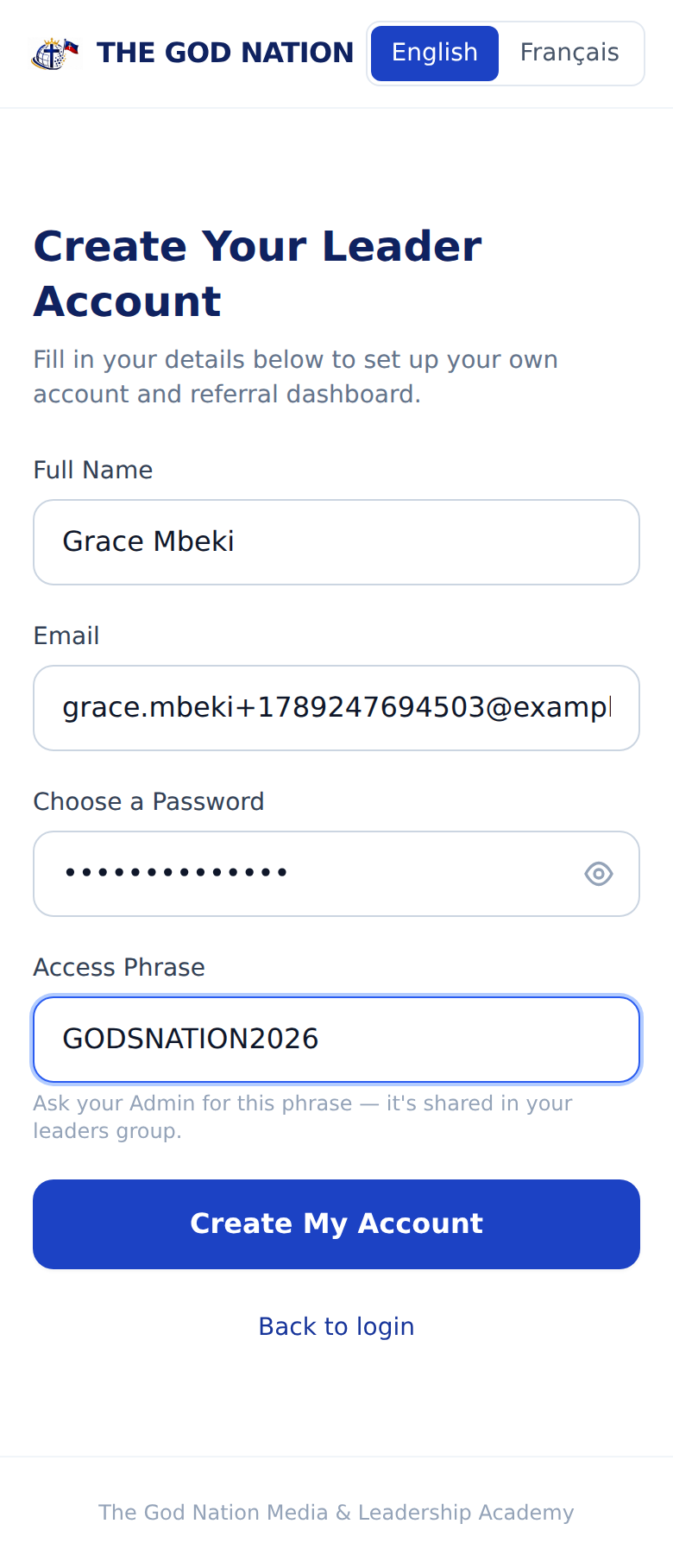
GODSNATION2026 and godsnation2026 are not the same. If it doesn't work, double-check with your Admin rather than guessing.
Les majuscules comptent. La Phrase d'accès doit être tapée exactement comme votre Admin l'a partagée — GODSNATION2026 et godsnation2026 ne sont pas identiques. Si ça ne fonctionne pas, vérifiez avec votre Admin plutôt que de deviner.
Tap "Create My Account." Your account activates immediately, and a referral code is generated for you automatically — you never have to invent or type one.
Appuyez sur « Créer mon compte ». Votre compte s'active immédiatement, et un code de parrainage est généré automatiquement pour vous — vous n'avez jamais à en inventer ou en taper un.
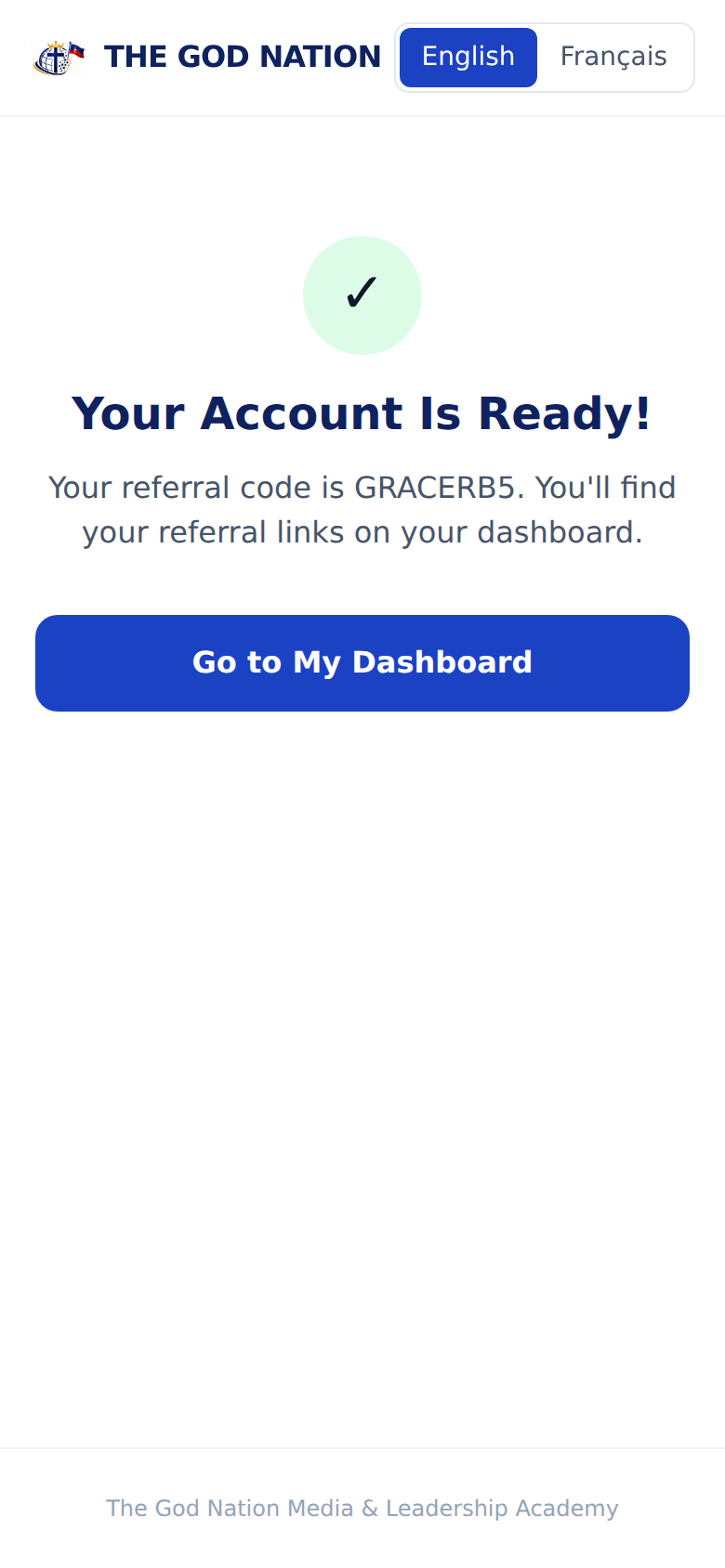
You're taken straight there after signing up — and it's the same place you'll return to any time you log in.
Vous y êtes directement conduit après l'inscription — et c'est l'endroit où vous reviendrez chaque fois que vous vous connecterez.
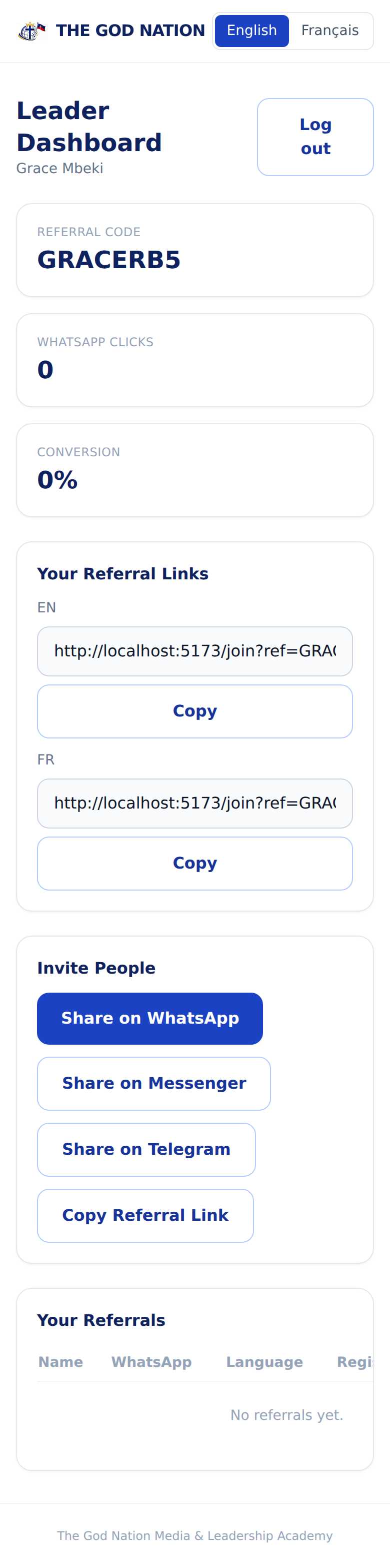
Your own code, shown for reference — it's already built into your links below.
Votre propre code, affiché pour référence — il est déjà intégré à vos liens ci-dessous.
How many people who used your link went on to tap through to WhatsApp.
Combien de personnes ayant utilisé votre lien ont ensuite rejoint WhatsApp.
Two ready-made links — one for English visitors, one for French. Tap "Copy" to paste either one anywhere.
Deux liens prêts à l'emploi — un pour les visiteurs anglophones, un pour les francophones. Appuyez sur « Copier » pour coller l'un ou l'autre n'importe où.
One-tap buttons that share your link straight into WhatsApp, Messenger, or Telegram. Covered next.
Des boutons en un tap pour partager votre lien directement sur WhatsApp, Messenger ou Telegram. Détails ci-dessous.
Every button below already carries your own link — you never have to copy it in manually to share it this way.
Chaque bouton ci-dessous contient déjà votre propre lien — vous n'avez jamais besoin de le copier manuellement pour le partager ainsi.
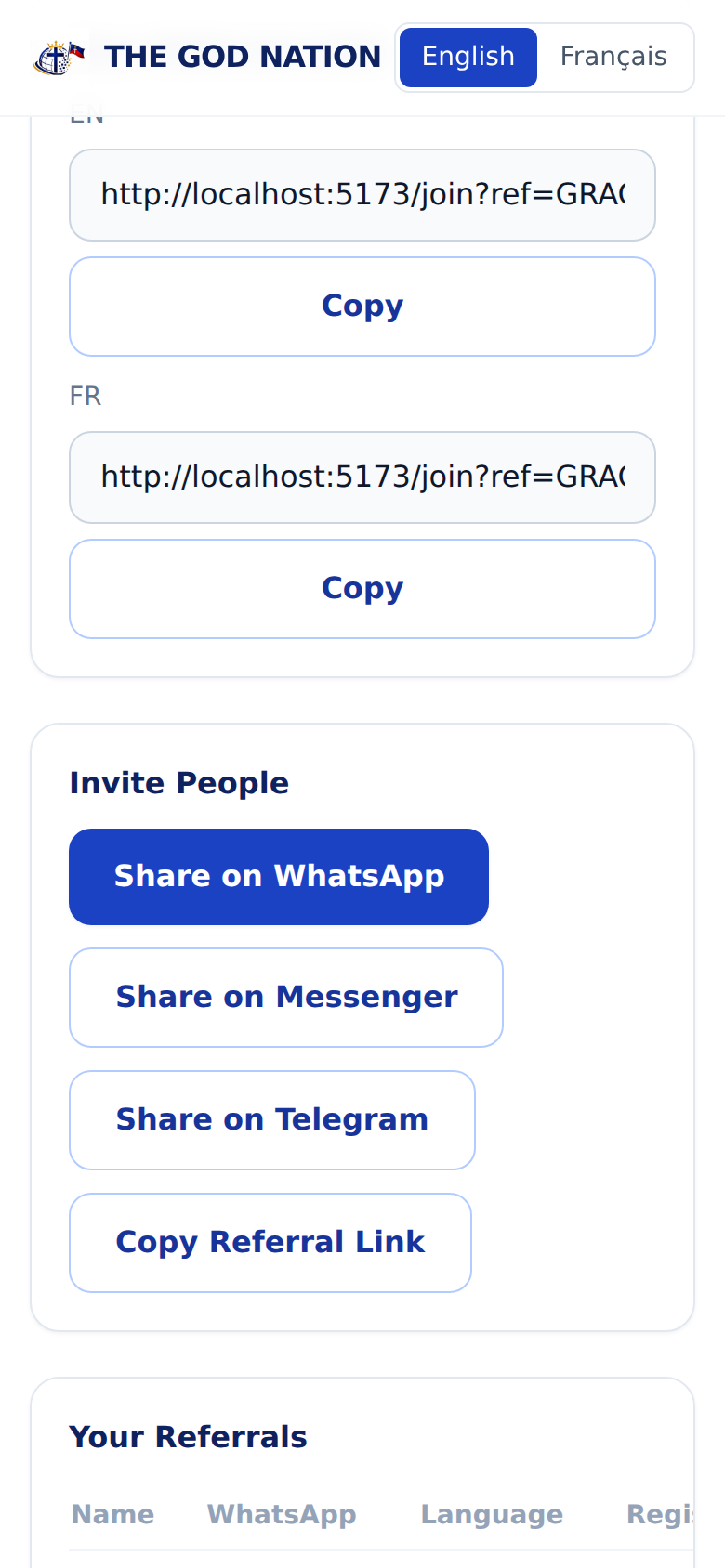
Opens WhatsApp with a ready-written invitation message and your link — just pick who to send it to.
Ouvre WhatsApp avec un message d'invitation déjà rédigé et votre lien — il ne reste plus qu'à choisir le destinataire.
Sends your link through Facebook Messenger.
Envoie votre lien via Facebook Messenger.
Sends your link through Telegram, with a short invitation message.
Envoie votre lien via Telegram, avec un court message d'invitation.
Copies just the link, to paste anywhere — a text message, another app, or a post.
Copie uniquement le lien, à coller n'importe où — un SMS, une autre application, ou une publication.
When a person opens your link and registers, they're counted as your referral automatically — nothing more for you to do. They'll appear by name in "Your Referrals" on your dashboard, and your Admin can see it too.
Quand une personne ouvre votre lien et s'inscrit, elle est automatiquement comptée comme votre filleul — vous n'avez rien d'autre à faire. Elle apparaîtra par son nom dans « Vos parrainages » sur votre tableau de bord, et votre Admin le verra aussi.
Registering and actually joining the WhatsApp group are two different steps for the person you invited. Here's how to spot them once they arrive, and follow up personally rather than leaving them to get lost in a big group.
S'inscrire et rejoindre réellement le groupe WhatsApp sont deux étapes différentes pour la personne que vous avez invitée. Voici comment la repérer dès son arrivée, et la suivre personnellement au lieu de la laisser se perdre dans un grand groupe.
Ask your Admin to confirm the exact phrase currently in use — it may have changed, or a letter/capitalization may not match.
Demandez à votre Admin de confirmer la phrase exacte actuellement utilisée — elle a peut-être changé, ou une lettre/majuscule ne correspond peut-être pas.
Use "Forgot password?" on the login page — a reset link is sent to the email you signed up with, as long as it's a real address you can check.
Utilisez « Mot de passe oublié ? » sur la page de connexion — un lien de réinitialisation est envoyé à l'e-mail utilisé lors de l'inscription, à condition que ce soit une adresse réelle que vous pouvez consulter.
No — it's generated for you automatically so every code stays unique. If it ever needs correcting, only your Admin can do that.
Non — il est généré automatiquement pour vous afin que chaque code reste unique. S'il doit être corrigé, seul votre Admin peut le faire.
No. WhatsApp, Messenger, Telegram, and copy-link sharing are all completely free to use, as often as you like.
Non. Le partage via WhatsApp, Messenger, Telegram et la copie de lien sont entièrement gratuits, aussi souvent que vous le souhaitez.